Reference · the chart page
Every button on the chart page, explained.
Find the control by where it sits on screen. Each row says what it does, whether it works in View, in Edit or both, and its keyboard shortcut if it has one. The gig stage, your chart list and the AI page are not covered here; the user guide walks through those.
View & Edit works in both modes · Chart only or Flow chart only when one kind of chart draws it · Pro needs Pro, the trial included.
01The header band
The dark band at the top of every chart. It stays on screen while you scroll, and the gig stage uses it as the title bar.

| Control | What it does |
|---|---|
| View | Switches to View: every editing control is put away and the chart reads as it will on stage. Someone who can only view the chart gets this same button, and for them it opens the layout menu instead. |
| Edit | Switches to Edit. The layout does not change between the two modes, so what you mark up while editing sits in the same place when you read it. |
| View layout | Opens the View menu beside the mode buttons: columns, tap to play, and page width. |
| Chart title | The song title. Enter moves you to the artist field. Renaming the chart also changes its address; the permalink in the share panel never changes. |
| Artist | The artist, shown beside the title. |
| genre | The genre tag. It is what the community page filters on when you publish. |
| time signature | The meter printed on the chart and used to seed new grooves. It does not reshape grooves you have already written. Pick Custom to type one that is not in the list. |
| custom time signature | Appears after you pick Custom in the time signature list. Type any meter, such as 7/8. |
| tempo (bpm) | The chart tempo. Playback and the metronome run at this speed. The same box sits in the step editor footer. |
| Metronome | Shows or hides the metronome bar under the header. |
| Play the flow chart | Plays the whole flow chart from the first bar at the chart tempo. Press again to stop. To start from a later bar, tap that bar instead. |
| Shrink the whole chart | Makes everything on the page one step smaller: titles, cues, notes and grooves together. |
| Sized to N percent | The current size. Tap it to open the size panel and size each kind of text separately. |
| Grow the whole chart | Makes everything on the page one step bigger. |
| Print / Save as PDF | Opens the print menu. |
| Private: sharing & visibility | Opens the sharing panel. A lock means the chart is private, a globe means it is public. Only the owner sees this button. |
| Clone | On someone else’s public chart: copies it into your account as a private chart of your own. The copy counts toward your chart limit. |
02The View menu
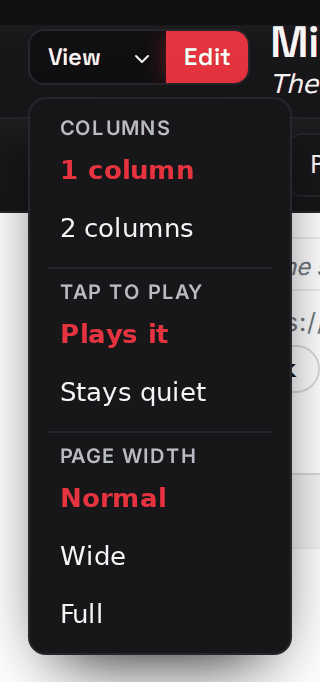
Opens from the small arrow beside View and Edit. Each choice is remembered on this device and applies while editing as well as reading.
| Control | What it does |
|---|---|
| 1 column | Lays the sections out in one column. This is also how the chart prints. |
| 2 columns | Lays the sections out newspaper style, filling the first column and then the second. Print and PDF follow it. On a narrow screen the chart falls back to one column until there is room. |
| Plays it | In View, tapping a groove loops it, and tapping a bar of a flow chart plays from there. |
| Stays quiet | In View, tapping the notation does nothing. Pick this for a tablet balanced on the kit. |
| Normal | The default page width. |
| Wide | A wider page. |
| Full | The chart fills the window. |
03The size panel
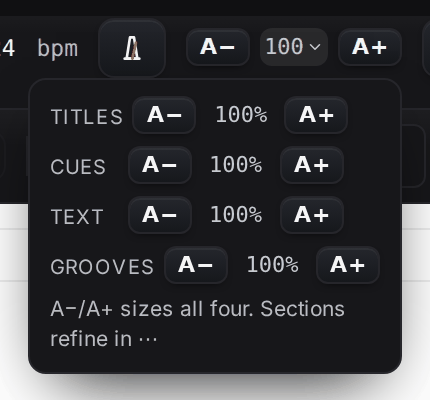
Opens from the percentage readout between A− and A+. The pair in the header moves everything at once; this panel moves one kind of text at a time. A flow chart has no section titles, so it shows three rows instead of four.
| Control | What it does |
|---|---|
| Shrink section titles | Section names, bar counts and section numbers one step smaller. The notation follows the title size. |
| Grow section titles | Section names, bar counts and section numbers one step bigger. |
| Shrink cues | The cues column one step smaller. |
| Grow cues | The cues column one step bigger. |
| Shrink text | Note lines and the description one step smaller. |
| Grow text | Note lines and the description one step bigger. |
| Shrink grooves | Every groove’s notation one step smaller. Grooves are redrawn at the new size, so they stay sharp. |
| Grow grooves | Every groove’s notation one step bigger. |
04The tools row
The row under the header in Edit. Markup tools on the left, undo and redo, the section color button and the tips sheet on the right. Markup is a screen and stage layer: it does not print.

| Control | What it does |
|---|---|
| Select | The ordinary pointer. Tap fields to type in them and tap grooves to open them. With text selected, the color swatches color the text. |
| Pen | Draw over the chart with a finger, a mouse or a stylus. Strokes stick to the line they start on, so they stay put when the layout changes. |
| Highlight | A translucent yellow marker. |
| Erase | Rubs out strokes and highlights. Tapping a sticky note with the eraser deletes the note. |
| Note | Tap the chart to drop a sticky note there. Type in it, drag it by its handle, delete it with its ×. |
| Bold | Bolds the selected text in a note line, a cue, a section name or a bar’s text. Press again to unbold. |
| Color … | Six swatches with two jobs. With Pen active, a swatch sets the ink. With Select active and text selected, it colors the text, and the black swatch clears the color. With a section name, bar count or cues field focused, it colors the whole field. |
| Small / Medium / Large stroke | The width of the pen, highlighter or eraser. Greyed out while Select or Note is active. |
| Clear | Removes every stroke, highlight and sticky note on the chart, after asking. Undo brings them back. |
| Undo | Steps back one edit. A run of typing is one step. Undo history lasts until you leave the page. ⌘Z / Ctrl+Z |
| Redo | Steps forward again. ⌘⇧Z / Ctrl+Y |
| Section colors | Opens the section color menu. |
| Auto-color sections | Colors every section whose name matches your color scheme: by default, choruses blue and bridges gold. Sections you colored by hand are left alone, and the menu says how many it kept. |
| Clear all colors | Removes every section color, including ones picked by hand. Use it to start over before auto-coloring. |
| Color on name change | When ticked, a section takes its color the moment you name it. Saved with your account. |
| Choose colors… | Opens Settings, where you pick which section families get which color. |
| Tips and shortcuts | Opens the short tips sheet, which links back to this page. ? |
05The metronome
Appears under the header when you press the metronome button. It clicks at the chart tempo, following the meter, and stays on screen while you scroll.

| Control | What it does |
|---|---|
| Start metronome | Starts or stops the click. The beat strip beside it lights the count, with the downbeat in red. |
| Tempo down / Tempo up | Nudges the chart tempo down or up by one while the click runs, and saves it. To jump further, type a number in the header. |
06Under the header
Two chart-wide fields between the header and the first section.

| Control | What it does |
|---|---|
| Chart description | Working notes for the whole chart. Printed only when you tick Description in the print menu. |
| Reference track URL | Paste a YouTube or Spotify link and the chart gets a reference track chip. The audio is never stored, only the link. |
| reference track | Opens the reference track player in place. Nothing loads from the provider until you press it. Press again to fold it away. |
| open ↗ | Opens the reference link in a new tab. |
07The section header
The line at the top of each section of a chart: name, bar count and energy meter, then the row actions and the ⋯ menu. A flow chart has no section header; its text sits over the bars.

| Control | What it does |
|---|---|
| Section name | The section’s name. Type one or pick a standard one from the arrow beside it. |
| Pick a standard section name | Opens a list of standard section names. |
| Verse, Chorus, Bridge… | Names the section. If Color on name change is on, the section takes its color at the same time. |
| bar count | How long the section runs. It is free text, so 8+8 for a section played twice, 8+1 for a tag bar, or OUT all work. |
| Set energy 1 to 5 | The five-segment energy meter. Tap a segment to set the level; tap the top lit segment to drop one. Hover for the word each level means. |
| Move section up | Swaps the section with the one above. |
| Move section down | Swaps the section with the one below. |
| Insert section below | Adds a blank section after this one and puts the cursor in its name. ⌘Enter / Ctrl+Enter |
| Duplicate section | Adds a full copy of the section below it, with its grooves, notes and any ink drawn over it. The copy is independent. |
| Delete section | Removes the section without asking. Undo brings it back. |
| Section options | Opens the section menu: sizes for this section, its outline color, and the row actions when the section is too narrow to show them on the line. |
| Close menu | Tapping anywhere outside an open menu closes it. Screen readers announce that target by this name. |
08The section ⋯ menu
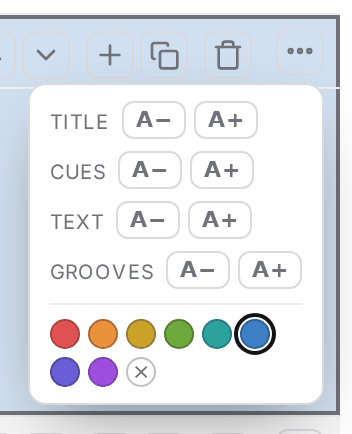
The per-section sizes and the outline color. Each size here multiplies the chart-wide size of the same kind. The row actions above also appear here when the section is narrow.
| Control | What it does |
|---|---|
| Shrink / Grow this section’s title | This section’s name, bar count and number, one step at a time. |
| Shrink / Grow this section’s cues | This section’s cues column. |
| Shrink / Grow this section’s text | This section’s note lines. |
| Shrink / Grow this section’s grooves | This section’s notation. Only offered when the section has a groove. |
| Outline … | Eight swatches. One press colors the section: a bar down its left edge and a light wash across it. Pressing the color it already has clears it. A color you pick here is kept when auto-color runs. |
| Outline none | Clears the section’s color. |
09Cues, note lines and grooves
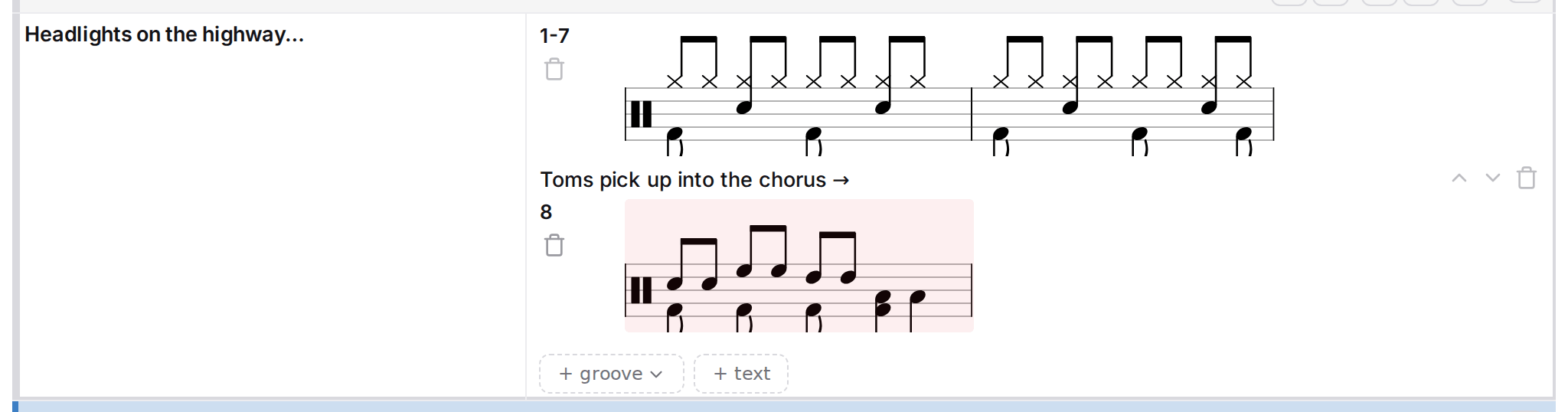
The body of a section of a chart: the cues column on the left, then note lines and grooves in the order you arrange them.
| Control | What it does |
|---|---|
| cues | The cues column: lyric cues or anything else you want at a glance. Line breaks are kept. |
| Resize the cues column | Drag the edge of the Cues heading to change the column’s width. Double-tap it to reset. The width is remembered on this device. |
| note line | A line of text in the notation column. It can run to several lines and take bold and colors. An empty note line disappears until you add text again. |
| Move line up | Moves the note line above the line before it, note or groove. |
| Move line down | Moves the note line below the line after it. |
| Delete note line | Removes the note line and any markup drawn over it. |
| + text | Adds a note line at the end of the section and puts the cursor in it. If the last line is already empty, it reuses that one. |
| + groove | Opens the add-groove menu. |
| New blank groove | Adds an empty one-bar groove in the chart’s meter and opens it in the step editor. |
| Pick a groove | Opens the groove picker: the other grooves on this chart and your saved library, each drawn on a staff. Picking one copies it in and opens it in the step editor. |
| groove bars | Which bars of the section the groove is played over, such as 1-4 or 1,3,5. Left blank it takes no room on the line. |
| Remove groove | Deletes the groove line. Undo brings it back. |
| Tap the notation | One gesture with two meanings. In Edit, tapping a groove opens it in the step editor. In View, tapping it loops the groove at the chart tempo and tapping again stops it. Stays quiet in the View menu turns the View half off. |
| + add section | Adds a blank section at the end of the chart. |
10The flow chart body
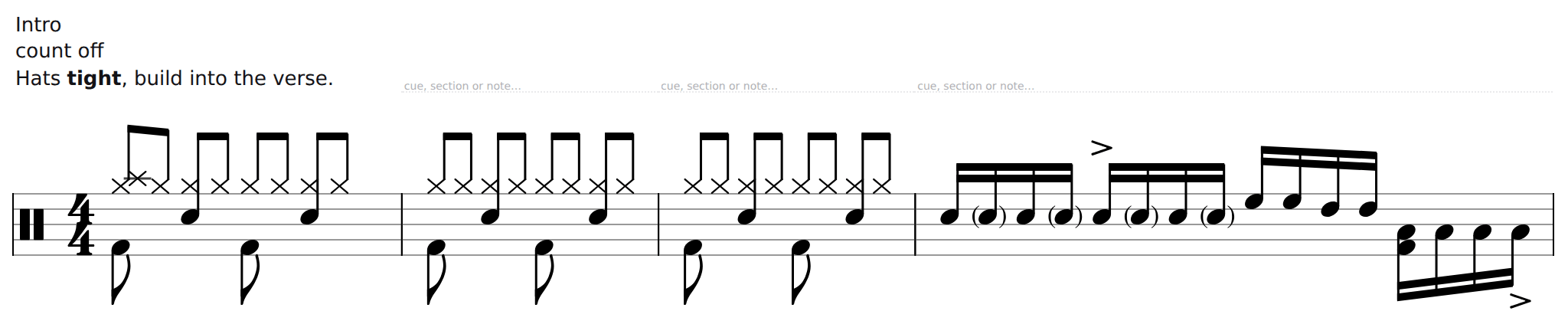
A flow chart writes every bar out on one continuous staff and has no section rows. Its text sits over the bars, and each bar is its own tap target.
| Control | What it does |
|---|---|
| text bar N | The text box over a bar: a section name, a cue, a note, or any mix. Bold it with the B in the tools row to make it read as a heading. Empty boxes shrink to a thin band and grow when you tap into them. |
| Tap a bar | In Edit, tapping a bar opens it in the step editor. In View, tapping it plays the flow chart from that bar. Stays quiet in the View menu turns the View half off. |
| + bar | Adds one empty bar at the end of the flow chart. Every other bar operation lives in the step editor once a bar exists to tap. |
11Sticky notes
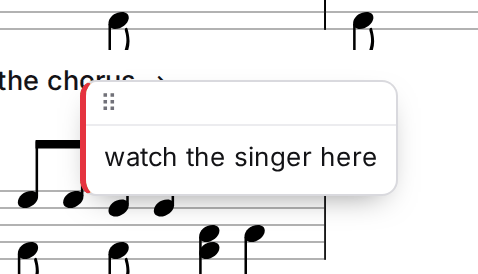
Dropped with the Note tool. A note is stuck to the line or bar it was placed on and stays readable in View. To delete one, tap it with the eraser.
| Control | What it does |
|---|---|
| Drag note | The handle on the note’s top bar. Drag it to move the note. |
| Markup note | The note’s text. Plain text only. |
12The sharing panel
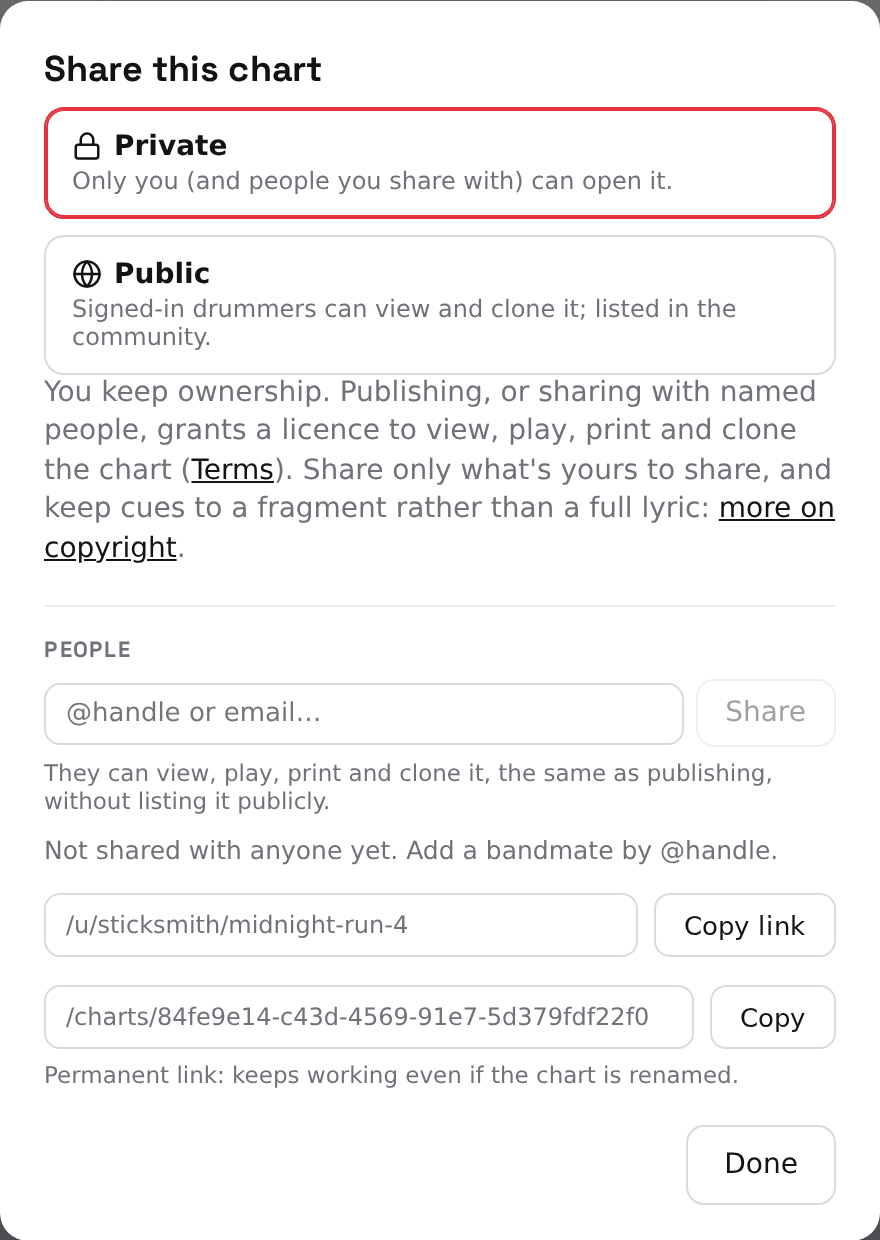
Opens from the lock or globe in the header. The owner decides who can open the chart; publishing needs a verified email.
| Control | What it does |
|---|---|
| Private | Only you and the people you share it with can open the chart. |
| Public | Any signed-in drummer can open and clone the chart, and it is listed on the community page. Anyone else sees a preview with a sign-in prompt. |
| Allow comments | On a public chart, lets signed-in viewers leave comments under it. You can delete any of them. |
| Copy link | Copies the chart’s address. The address follows the title, so it changes if you rename the chart. |
| Share with (handle or email) | Type a drummer’s @handle or email address and press Share. They can view, play, print and clone the chart, not edit it. |
| Share | Shares the chart with the person named in the box. |
| Remove @handle | Takes the chart back from that person. Removing never needs Pro. |
| go Pro | Shown in place of the share box on a free account: sharing with named people is a Pro feature. |
| Show permalink | Reveals the chart’s permanent address, which survives renames. |
| Copy | Copies the permanent address. |
| Terms · more on copyright | The terms a published chart is offered under, and the copyright page. Both open in a new tab. |
| Done | Closes the panel. |
13The print menu
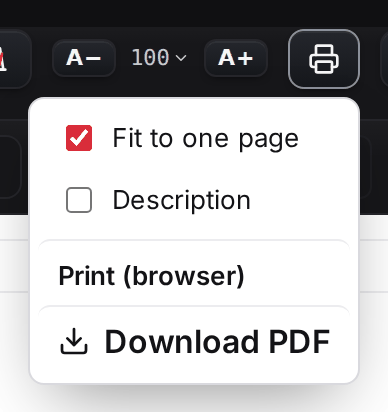
Opens from the printer in the header. Both paths render the chart the same way, laid out for a Letter page. Markup never prints.
| Control | What it does |
|---|---|
| Fit to one page | Shrinks the chart until it fits one sheet. It never grows a chart, and untick it to print at full size over more pages. A flow chart re-wraps its bars instead, so it does not offer this. |
| Description | Prints the chart description under the title. Offered when the chart has one. |
| Print (browser) | Opens the print page in a new tab and starts your browser’s print dialog. Free on every account. |
| Download PDF | Renders the chart on our side and downloads a PDF that looks the same on every machine. |
14The groove picker
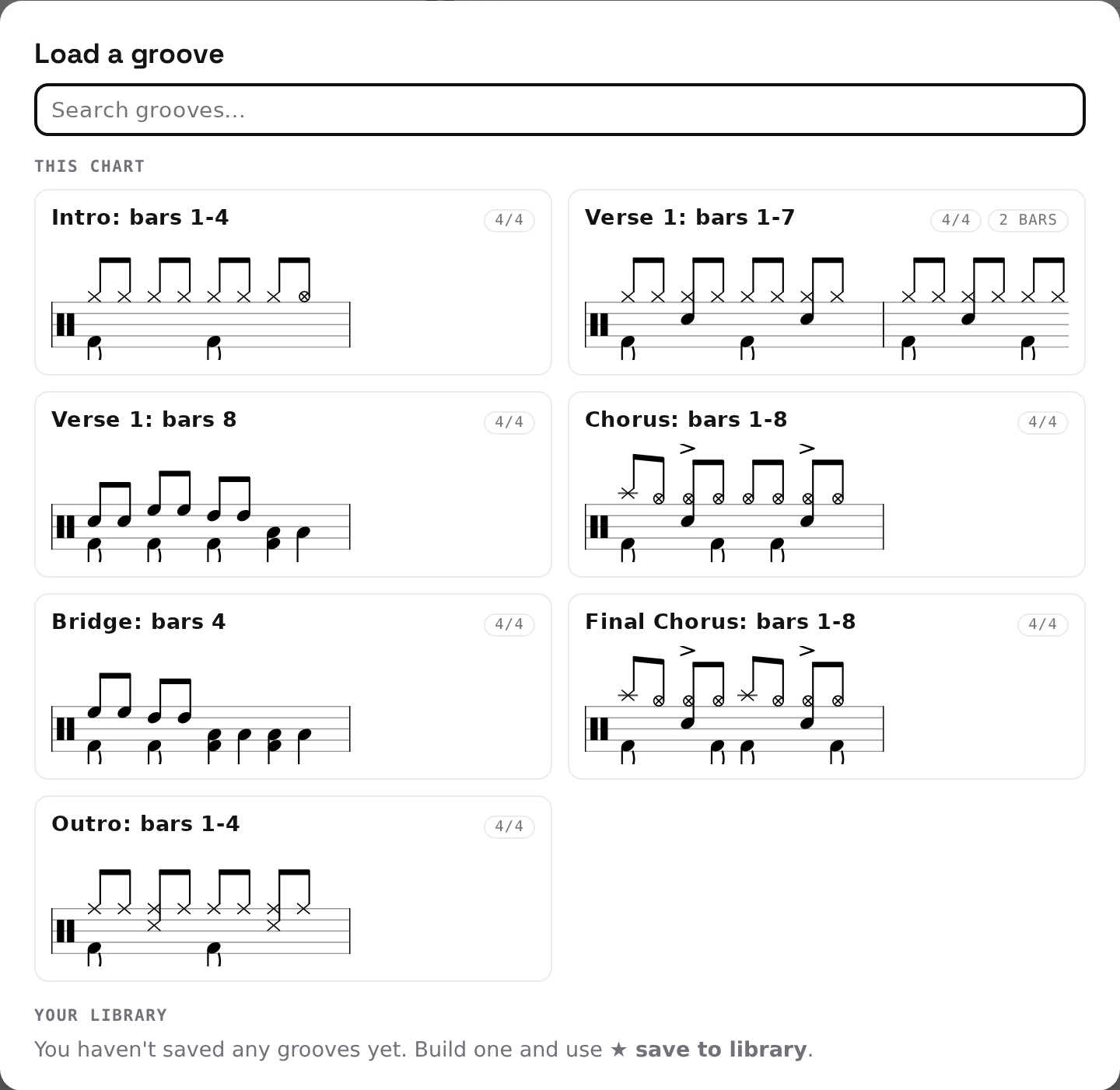
Opens from Pick a groove on a chart, and from load groove in the step editor. Every groove is drawn on a staff so you can tell two of the same name apart.
| Control | What it does |
|---|---|
| Search grooves | Filters both lists by name as you type. |
| A groove card | Tap a card to load that groove. On a chart it replaces the groove you opened; on a flow chart it replaces the bar, adding bars if the groove is longer. |
15The step editor
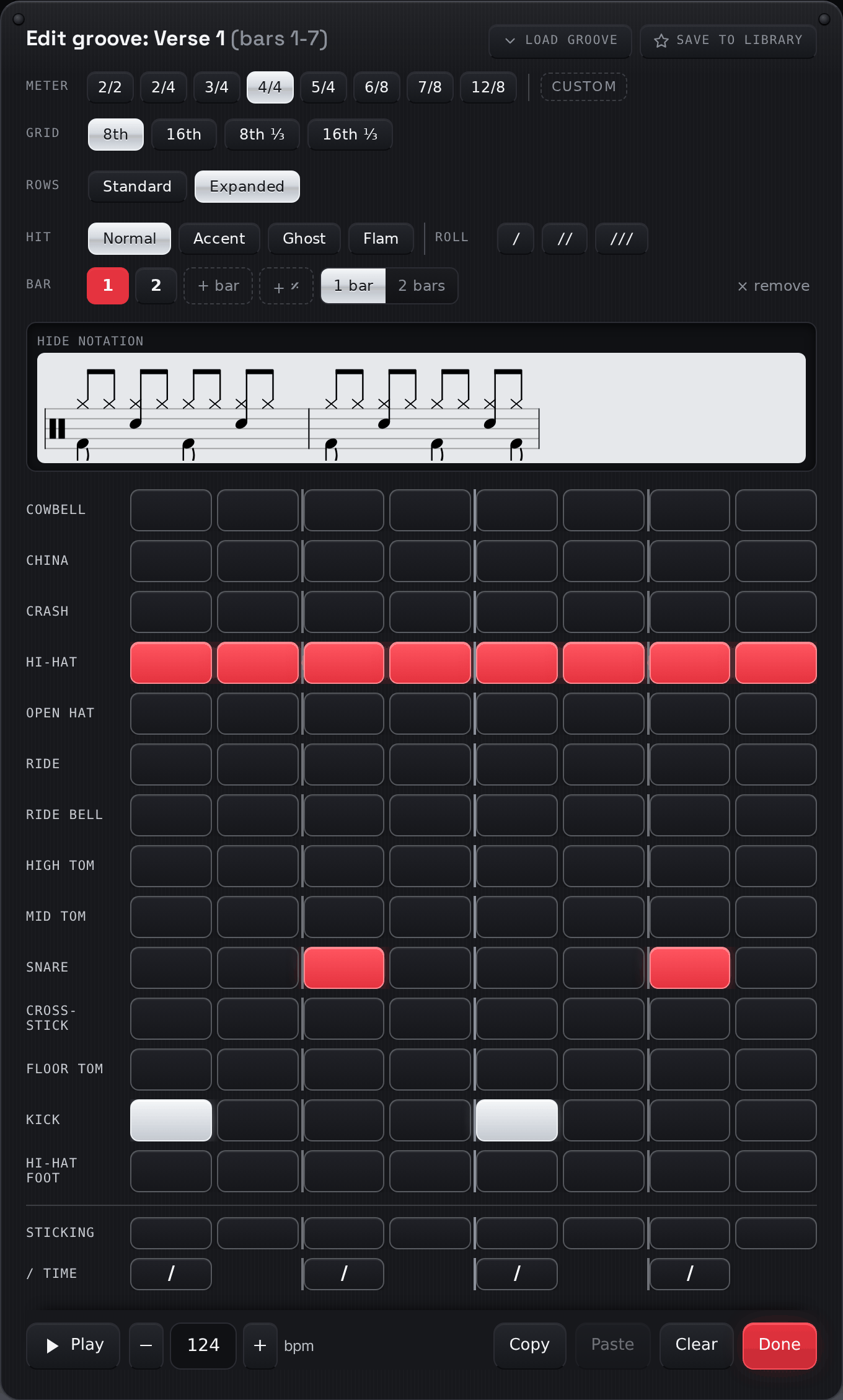
Opens when you tap a groove in Edit, or a bar of a flow chart. Notes are never edited on the staff itself: you tap a coarse grid and the staff is redrawn. The same editor opens on a saved groove in your library, with the chart-only rows left out.
| Control | What it does |
|---|---|
| load groove | Opens the groove picker. What you pick replaces this groove, or this bar on a flow chart. Greyed out until there is another groove on the chart or one in your library. Shown: Not in the library editor. |
| save to library | Saves the groove to your library under a name you type. Saving under an existing name replaces that groove, after asking. Shown: Not in the library editor. |
| 2/2 · 2/4 · 3/4 · 4/4 · 5/4 · 6/8 · 7/8 · 12/8 | Sets the meter. 6/8 and 3/4 have the same six cells and differ in how they beam and click; the preset sets all of that in one press. |
| Custom | Shows the beats stepper so you can set any number of cells per bar, for a meter not in the list. It lights on its own when the bar matches no preset. |
| Fewer / More beats per measure | One cell fewer or one more per bar, from 1 to 64. Cells are added or dropped at the end of the bar. |
| 8th · 16th · 32nd · 8th ⅓ · 16th ⅓ | The note value of each cell. A new groove starts on 16ths. Switching resamples the hits you have written onto the new grid, so a rock beat stays a rock beat. |
| Standard | Shows the instruments and mark rows you chose in Settings. A row that already has something written on it always stays visible. |
| Expanded | Shows every instrument and every mark row. |
| Settings | Opens Settings, where you choose your standard rows. |
| Normal · Accent · Ghost · Flam | What a tap on the grid paints. Normal toggles a hit. Accent draws a > over it. Ghost draws the notehead in brackets and plays it softer. Flam adds a grace note just before the beat and plays two strokes. Tapping a step that already has that mark clears it. |
| / · // · /// | Paints a roll: one, two or three slashes through the stem, played as doubles, fours or a buzz. A roll goes on top of whatever hit is there, and on an empty step it adds a normal hit first. |
| Tempo from this bar (bpm) | A tempo change that starts at this bar and runs until the next one. Leave it empty to follow the chart tempo. Shown: Flow chart bar. |
| Previous bar / Next bar | Moves the editor to the bar before or after this one, through the whole flow chart. The heading says which bar you are on. Shown: Flow chart bar. |
| + bar | Inserts an empty bar after this one and moves to it. On a chart groove the new bar takes the groove’s meter; on a flow chart it takes this bar’s. |
| ⧉ duplicate | Inserts a copy of this bar after it, marks included, and moves to the copy. Shown: Flow chart bar. |
| × remove | Deletes this bar from the flow chart and moves to the bar that took its place. Shown: Flow chart bar. |
| ⏎ new line | Starts a new line of the flow chart at this bar. Press again to let it wrap on its own. Shown: Flow chart bar. |
| / slashes | Draws the whole bar as time slashes, one per beat. The notes underneath are kept and come back when you press it again. Shown: Flow chart bar. |
| 1 · 2 · 3 … / 𝄎 | One tab per bar of a multi-bar groove. Tap one to edit that bar; the grid shows one bar at a time. A tab reading 𝄎 is a repeat bar. Shown: Chart groove and library. |
| + 𝄎 | Inserts a repeat bar after this one: it plays the bar before it and is drawn as the one-bar repeat sign. Shown: Chart groove and library. |
| 𝄎 repeat | Makes this bar repeat the one before it. Its own steps are kept and come back when you untick it. Shown: Chart groove and library, from bar 2. |
| × remove | Deletes this bar from the groove. A groove always keeps at least one bar. Shown: Chart groove and library. |
| hide notation | Shows or hides the live staff under the grid. It is the chart’s own engraving, redrawn on every tap. |
| Instrument steps | The grid itself, one row per instrument and one column per cell. A tap paints whatever the Hit row has selected. Vertical lines mark the beats; a thicker one marks the middle of the bar. |
| Sticking steps | Under the instruments: tap a step for R, again for L, once more to clear. The letters print under the staff. Shown: Expanded, or when Settings includes it. |
| Ensemble figure steps | What the band plays, drawn above the staff: tap a step for a hit, again for an accent, once more to clear. Shown: Flow chart bar, in Expanded or when Settings includes it. |
| / time steps | One button per beat: tap it to draw that beat as a time slash. The notes under it are kept and come back when you tap again. Not offered in the library editor. Shown: Expanded, or when Settings includes it. |
| Play | Loops the groove at the chart tempo. Press again to stop. |
| Slower / tempo / Faster | The chart tempo, the same value as in the header. One down, type a number, or one up. |
| Copy | Copies this bar’s steps and marks. The copy stays until you leave the page and works across grooves and sections. |
| Paste | Replaces this bar with the copied one. Only offered when the copied bar has the same number of cells. |
| Clear | Empties this bar’s hits and marks, after asking. Time slashes are left as they are. |
| Done | Closes the editor. Everything you tapped is already in the chart. Escape and tapping outside the editor do the same. Esc |
16Keys with no button
A few shortcuts have no control of their own. ⌘ is Ctrl on Windows; the tips sheet can show either.
| ⌘↓ / ⌘↑ (Ctrl on Windows) | Jump to the next or previous section’s name.Chart only |
| ? | Open the tips sheet from anywhere in the editor, except while typing. |
| Esc | Close the open menu, panel or step editor. |